
Most ecommerce problems we find in GA4 do not come from Google Tag Manager itself. They come from the dataLayer underneath it: events named slightly differently on each template, prices sent as text, or an ecommerce object that carries product data from one event into the next.
A clean dataLayer is a small, boring contract between your website and your tags. This post covers the four events most stores need first, which are view_item, add_to_cart, begin_checkout and purchase. We look at how to name events and parameters, why the ecommerce object should be cleared, and how to test before anything goes live.
Use the event names GA4 already knows
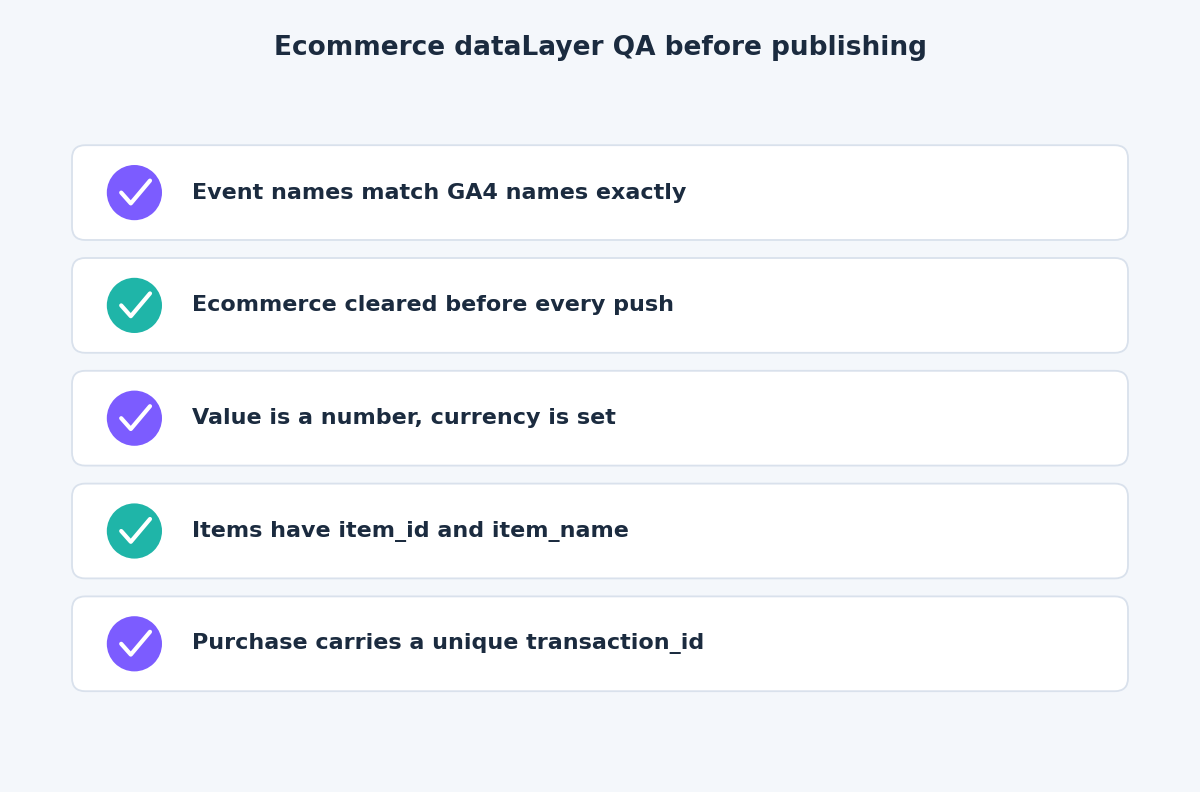
Stick to Google’s recommended ecommerce event names exactly as documented. Google’s event naming rules say the name is case sensitive, must start with a letter and must be fewer than 40 characters, so Purchase and purchase are two different events.
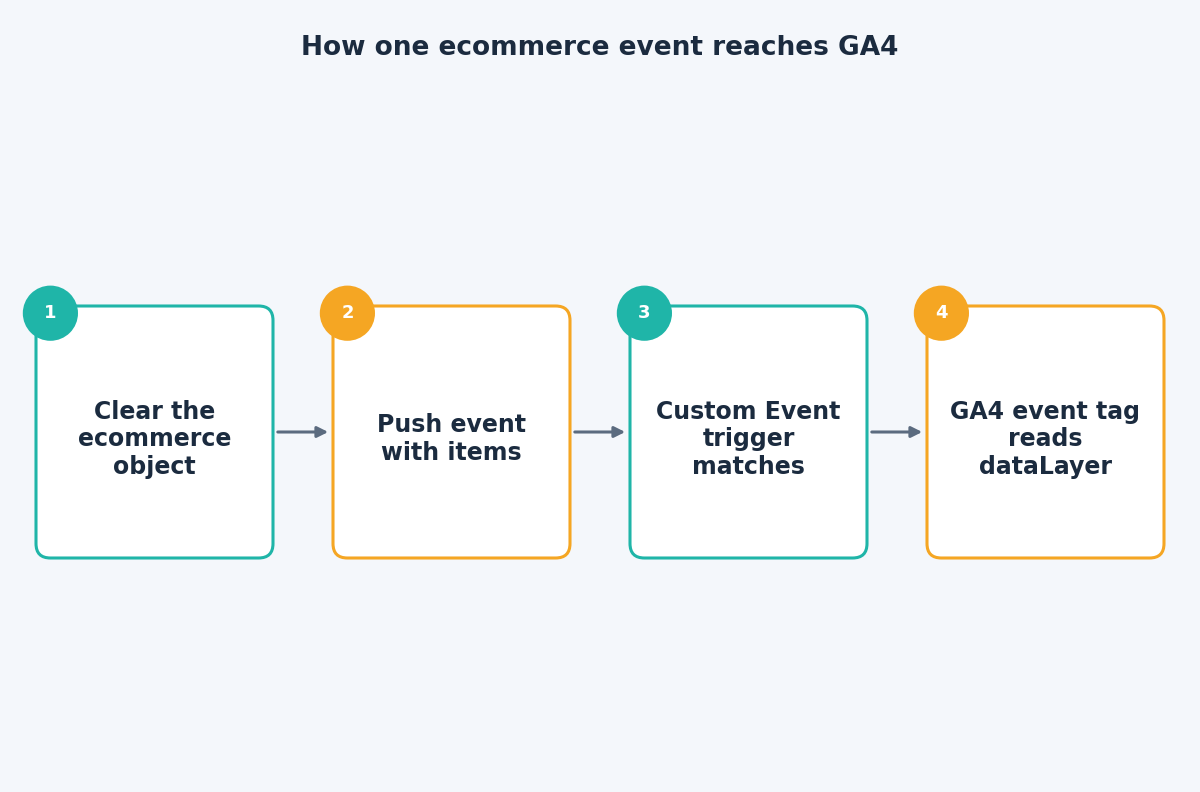
The simplest convention is to make three things identical: the event value you push, the name in your Custom Event trigger, and the name of the GA4 event. When all three match, anyone opening the container can follow the chain without a spreadsheet.
What each push should contain
Google’s ecommerce documentation for Tag Manager lists the parameters each event expects:
- view_item and add_to_cart: an
itemsarray, pluscurrencyandvalue. - begin_checkout: the same three, with an optional
coupon. - purchase:
items,currency,valueand a requiredtransaction_id, with optionaltax,shippingandcoupon. - Each item:
item_id,item_name,priceandquantity.
The same page says to set currency at the event level whenever you send value, because it is the primary currency for the transaction and is used for standard reporting.
Beyond those names, a few habits keep the data tidy. Send prices and quantities as numbers, never as strings like “49,90 EUR”. Send IDs as strings. Use the same item_id on every page, and ideally the same one that appears in your product feed. Keep the structure identical on the product page, the cart and the checkout, so one tag configuration covers all of them.
Clear the ecommerce object before every push
Google’s examples put this line before every ecommerce push, with the comment “Clear the previous ecommerce object”:
dataLayer.push({ ecommerce: null });
dataLayer.push({
  event: "add_to_cart",
  ecommerce: {
    currency: "EUR",
    value: 49.90,
    items: [{
      item_id: "SKU-1042",
      item_name: "Trail running shoes",
      price: 49.90,
      quantity: 1
    }]
  }
});
The reason is how the dataLayer behaves. Values stay available for as long as the visitor remains on the page, and pushed objects are merged rather than replaced. Without the reset, a field or an item left over from a view_item push can still be sitting in the ecommerce object when add_to_cart fires. Clearing it means each event starts from an empty object and contains only what you sent.
Wire it up in GTM
The container side is short when the dataLayer is consistent:
- Create a Custom Event trigger for each event, with the event name set to exactly what your site pushes.
- Create a GA4 event tag with the matching event name.
- In the tag, open More Settings, then Ecommerce, tick Send Ecommerce data and set the data source to Data Layer.
- Attach the trigger and confirm the tag points at the right measurement ID.
Because the tag reads the ecommerce object directly, you do not need to map every item field by hand. Keep the event key and the ecommerce object in the same push, so the trigger fires only when the data it needs is already in place. If the event is pushed first and the data a moment later, the tag can fire with an empty object.
Test before you publish
Test in three places, in this order:
- Preview mode, Data Layer tab. Select the event in the list and read the
ecommerceobject. Check thatitemsis an array, numbers are numbers and nothing from an earlier event is left inside. - Tag status. Confirm the GA4 event tag fired once on that event, not zero times and not twice.
- GA4 DebugView. Google’s DebugView documentation notes that Tag Manager’s preview mode can enable debug mode for your device, so the event, its parameters and its items appear in real time.
Then place a real test order. Purchase deserves the most care. Google Analytics deduplicates purchase events that share a transaction ID, but only for web streams, and it warns that sending the same ID for different transactions can lead to undercounting. The ID must be unique per order and generated by your backend, and it should stay the same when the confirmation page is reloaded, so a refresh is recognized as the same order.
Mistakes worth checking for
Most broken setups fail in one of these ways: the purchase push fires on the confirmation page and again from a second tag, the currency is missing so revenue metrics cannot be computed accurately, the event key is pushed before the ecommerce object is ready, or one template uses item_name while another uses name. All of them show up in the Data Layer tab within a minute, provided you look at every event rather than just the purchase.
It also helps to write the contract down. A one-page document listing each event, its required parameters and an example push gives your developers something to build against and gives you something to test against. When the site changes later, the same page tells you what should still be arriving in the dataLayer.
The takeaway
Good ecommerce tracking is mostly discipline in the dataLayer: standard names, numeric values, a cleared object and a unique transaction ID. If you would like a second opinion on your GA4 ecommerce implementation, the contact page is the place to start.
Related reading
- Debugging Google Tag Manager with Preview mode: a repeatable routine for finding tag problems.
- Reliable form and lead tracking in GTM: why built-in triggers fail and what to use instead.
- Consent Mode v2 in Google Tag Manager: setup, modes and verification.