
Form tracking looks easy. Switch on the built-in trigger, publish the container and wait for leads. Then the numbers in GA4 do not match the CRM, or Google Ads counts two conversions for one enquiry. The usual cause is that “form submitted” means different things to the browser, the server and your tags.
This post explains what the built-in trigger actually listens for, why it fails on modern sites, which methods to use instead, and how to keep each lead to a single event.
What the built-in trigger actually does
The Form Submission trigger listens for a form being submitted in the browser. Google’s form submission trigger documentation describes two options. Wait for Tags delays the submission until the tags that depend on the trigger have fired or a timeout passes. Check Validation fires the trigger only if the form is successfully sent. It also fills built-in variables such as Form ID, Form Classes and Form URL, and Google recommends limiting the trigger to specific forms rather than watching every form on the site.
GA4’s enhanced measurement has a similar feature. Its form interactions setting collects form_start and form_submit, which Google describes as firing when the user submits a form. Both signals are based on what happens in the browser. Neither proves that your server accepted the lead.
Why it fails
In practice, four situations cause most of the trouble:
- AJAX forms. The page does not reload. A script sends the data and shows a message, so the standard submit event the trigger relies on may never occur.
- Embedded forms. A form inside an iframe lives in a separate document, and the container on the parent page cannot see into it.
- Redirects. If the page unloads straight after the click, tags may not finish sending before it does. Wait for Tags can buy time, but it delays the visitor’s submission and only helps up to its timeout.
- Attempts counted as leads. Without Check Validation, the trigger can fire when the visitor merely tries to submit, while spam filters or server-side validation reject the request. You end up with more leads in GA4 than in your inbox.
Choose the method by how the form works
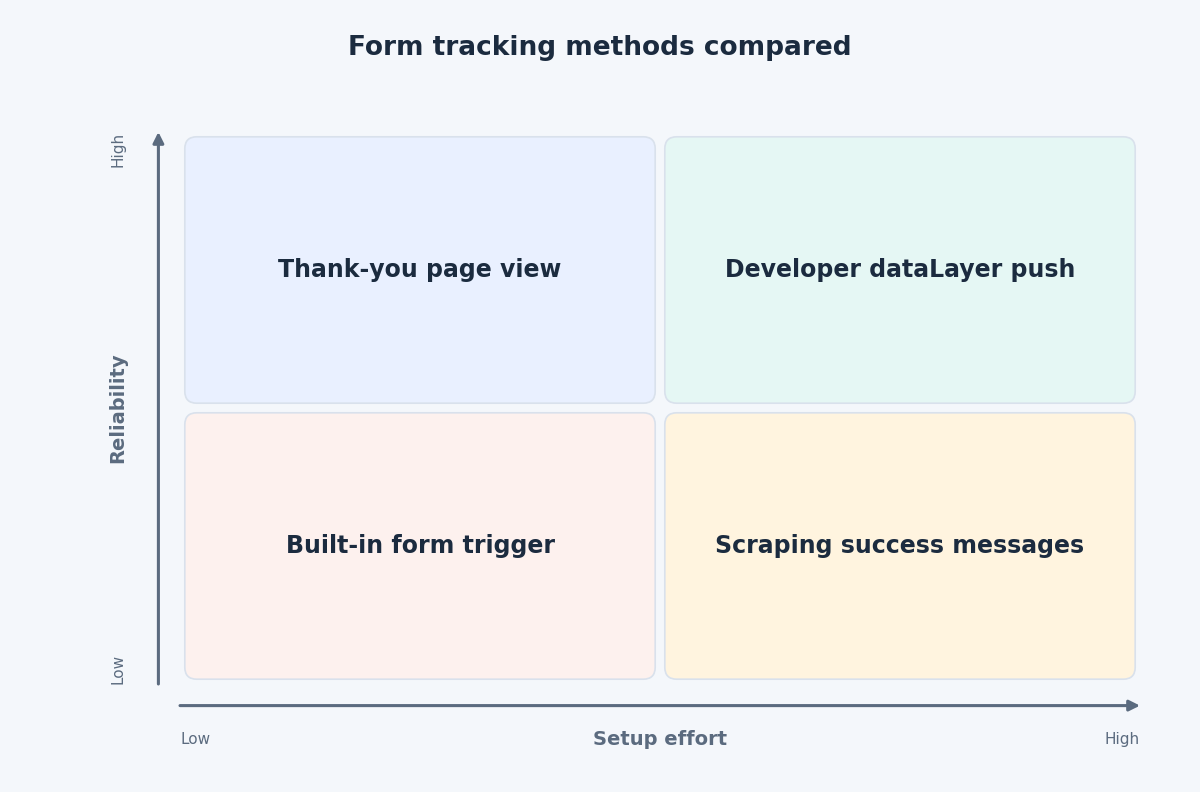
- Thank-you page. If the form redirects to a distinct confirmation URL, a Page View trigger on that page path is simple and sturdy. The catch is that anyone who reloads the page, bookmarks it or opens it directly counts again, so treat this method as a baseline rather than a guarantee.
- Developer dataLayer push. This is the most reliable option. The site pushes an event only after the server confirms success, so the tag never fires on a rejected or abandoned attempt.
- Provider events. Many form plugins announce success themselves. Contact Form 7, for example, dispatches a
wpcf7mailsentevent in the browser, and a short listener can turn it into a dataLayer push. Check your plugin’s documentation for the exact event name. - Element visibility. As a fallback, an Element Visibility trigger can fire when a success message appears. Set it to fire once per page, because a message that reappears would otherwise count again.
A developer push can be as small as this:
dataLayer.push({
  event: "generate_lead",
  form_id: "contact",
  form_name: "Contact request"
});
For the dataLayer approach, create a Custom Event trigger for generate_lead and send a GA4 event with the same name. Google’s recommended events list describes generate_lead as the event for when a user submits a form or a request for information. If you attach a value, Google’s reference says the currency is required too.
Push identifiers such as the form ID, never the contents of the fields. Google’s analytics policies prohibit sending personally identifiable information, and email addresses and phone numbers are named examples.
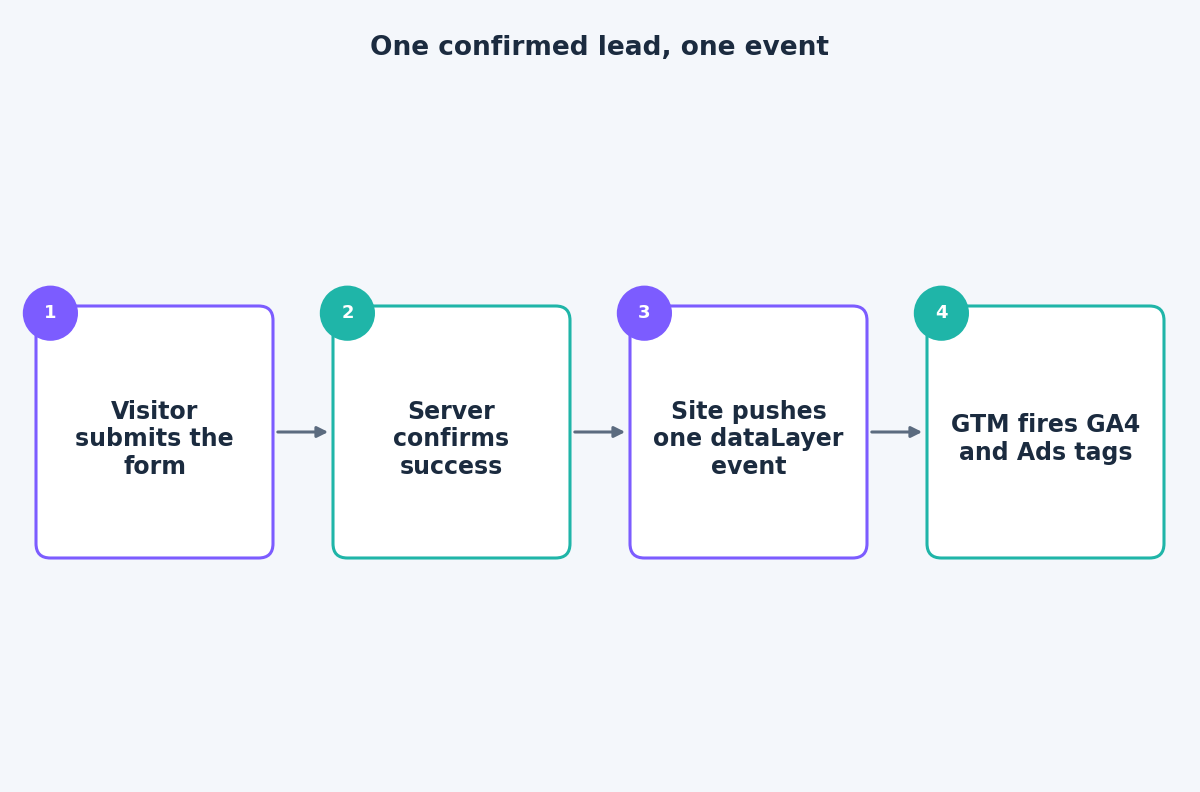
Deduplicate every lead
Duplicates come from stacking methods, so control them deliberately:
- Keep one source per conversion. When you move from the built-in trigger to a dataLayer event, pause the old tag. Otherwise both fire on the same submission.
- Use the firing option. Setting the tag to fire once per event stops the same event triggering it repeatedly.
- Guard the thank-you page. Make the page reachable only after a real submission, or set a flag in a first-party cookie or session storage so a reload does not fire again.
- Use unique IDs where they exist. GA4 deduplicates purchases that share a transaction ID, but Google’s documentation for that feature is about purchase events, so do not assume it protects leads. Google Ads has its own transaction ID guidance: the ID must be unique per transaction and generated by your backend. If your system produces a lead ID, pass it along.
- Avoid two routes into Google Ads. Counting the same lead through a native conversion tag and an imported GA4 key event double counts unless one of them is set as secondary.
Test like a skeptic
In Preview mode, submit a valid form, an invalid one and a spam-like one. Confirm the lead event appears once for the valid submission and not at all for the others. Reload the confirmation page and check again. Do this on desktop and on a phone, because scripts and browsers can behave differently. Then compare a week of GA4 leads with the CRM. A small gap is normal, but a large or growing one means the trigger and the server disagree about what a lead is.
The takeaway
The most dependable lead tracking waits for the server to confirm, pushes one clearly named event and keeps personal data out of the dataLayer. If your lead numbers do not match your CRM, the contact page is a good place to start a conversation about fixing it.
Related reading
- A clean GA4 ecommerce dataLayer in GTM: the event and parameter contract behind reliable ecommerce tracking.
- Debugging Google Tag Manager with Preview mode: a repeatable routine for finding tag problems.
- How to raise Meta lead ad quality: forms, questions, follow-up and qualified-lead feedback.