A Google Tag Manager container ages like a shared drive. Nobody plans the mess. It builds up through tags called “Test”, triggers nobody remembers creating, and several people editing the same container at once. Then something breaks and nobody can say which change caused it.
Good hygiene fixes this without adding much work. This post covers naming, folders, versions and version notes, workspaces, permissions and a safe way to clean out what is no longer used.
Name things so the list explains itself
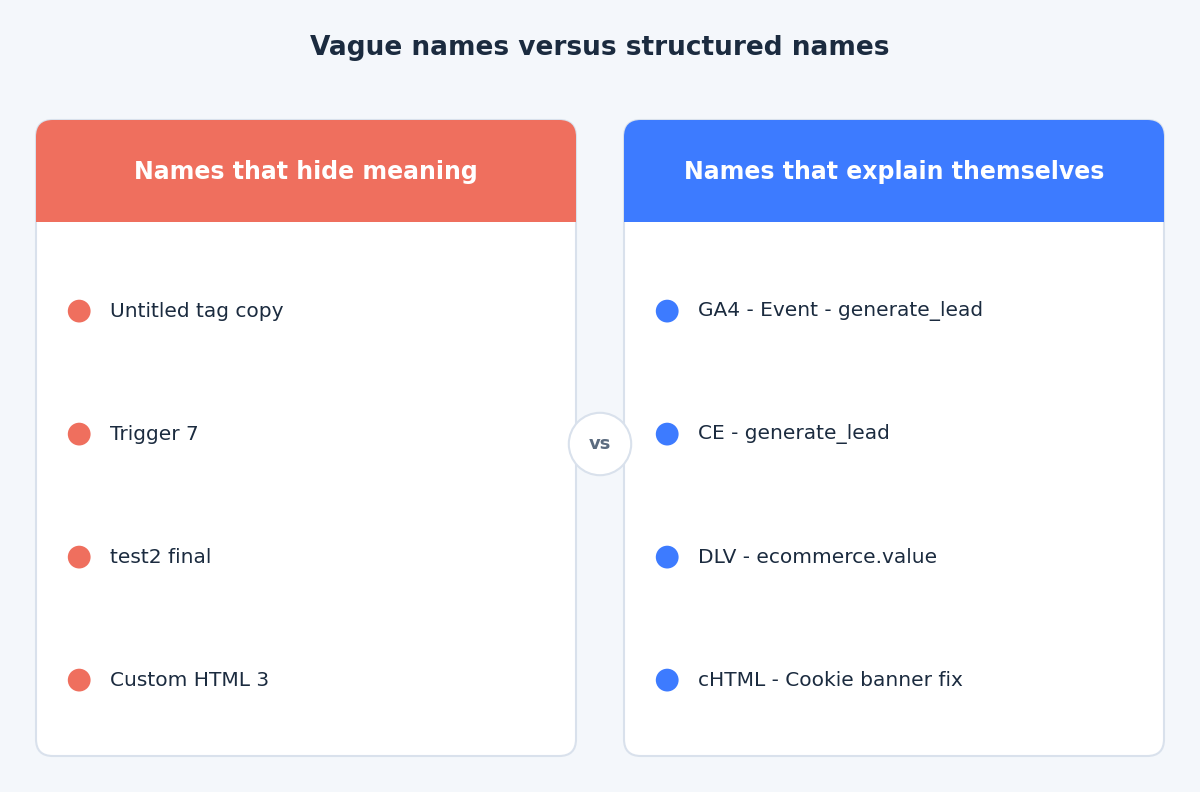
Google’s guide to organizing containers recommends a pattern of item type, then app name, then detail, with examples such as “Analytics pageviews – Info site + blog”. The principle is that a name should tell you what the item is and what it does before you open it.
A version of that we like: keep the same order everywhere and use short type prefixes.
- Tags: platform, type, event. For example
GA4 - Event - generate_lead. - Triggers: trigger type and event. For example
CE - generate_lead. - Variables: variable type and the key it reads. For example
DLV - ecommerce.value.
Leave dates and initials out of names. They go stale, and version notes are the better place for them.
Use folders for ownership
The same Google page suggests grouping items by project, by team or by tag type. Pick one scheme and keep to it. For most business sites, grouping by platform works well: GA4, Google Ads, Meta, Consent, Utilities.
The rule that makes folders useful is that every item is placed in one when it is created. Items sitting outside any folder are usually the ones nobody owns, so they are the first place to look in a review.
Versions and version notes
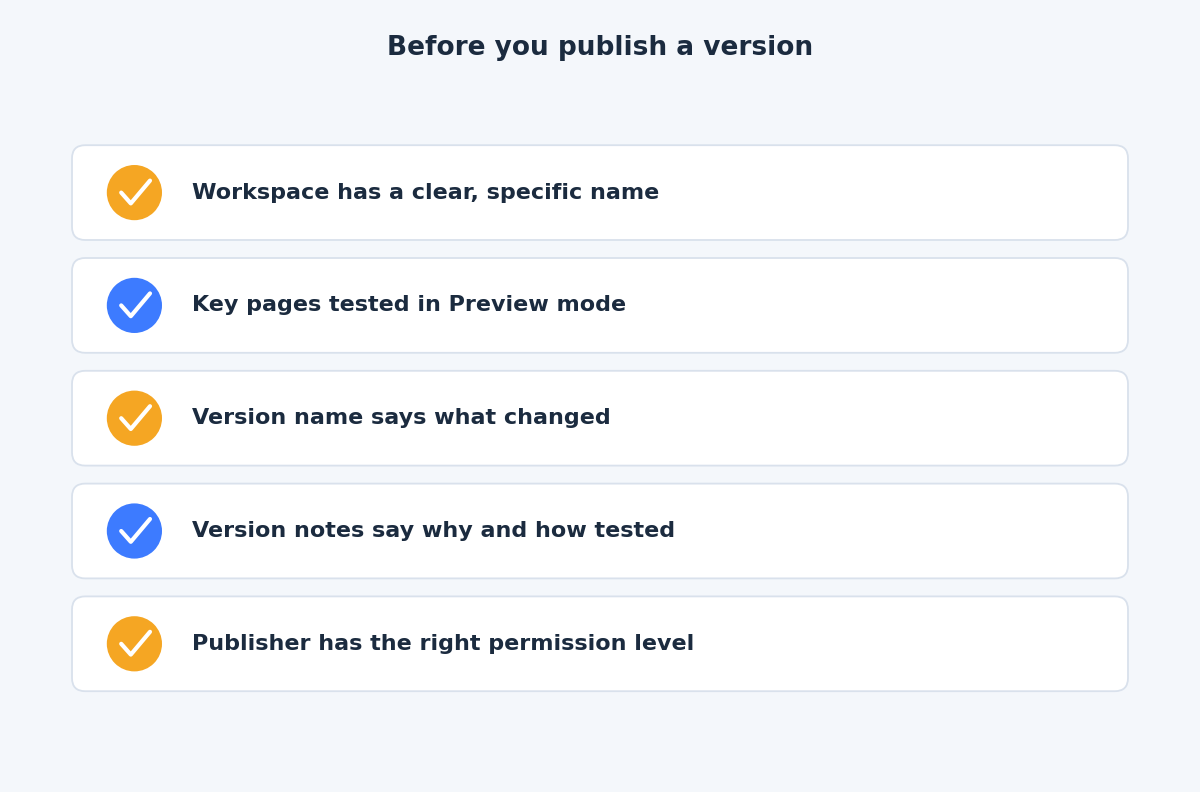
Every time a container is published, a version is recorded. Google’s versions documentation recommends giving each one a name and description, with the example “GA page view tag – initial launch”. The Versions page shows when each version was live and who published it, which makes it your change log.
A useful version note is short and answers four questions:
- What changed? One line, naming the tags or triggers touched.
- Why? The request, ticket or business reason.
- How was it tested? Which pages or journeys were checked in Preview mode.
- What is the rollback? The previous version number.
If a change goes wrong, you can publish an earlier version, or use the Actions menu on the Versions page to replace the current draft with the content of an older one.
Keep workspaces short and specific
According to Google’s workspaces documentation, a standard account can have up to three workspaces per container (the default plus two more), while Tag Manager 360 allows an unlimited number. The same page recommends a meaningful naming scheme, because a workspace’s name and description may later become the version name and description.
That points to a simple approach: one workspace per purpose, named like a version, such as “Lead form tracking – contact page”. Long-lived workspaces drift away from the published container, and Tag Manager then reports that the workspace is out of date and shows conflicts to resolve. Publish and remove a workspace when its work is done, rather than keeping it open for later.
Give people the smallest permission that works
Tag Manager permissions work at two levels. At account level, a user can view basic information, while an administrator can create containers and change permissions. At container level, Google defines No access, Read, Edit, Approve and Publish. Edit can create workspaces and make changes but cannot create versions or publish. Approve can create versions but not publish. Publish has full rights.
Some practical rules:
- Give agencies and freelancers Edit or Approve, and reserve Publish for a small group who review changes.
- Keep at least two administrators. Google warns that if the only administrator changes roles, you can be locked out of the account.
- Review the user list on a schedule and remove people who have left or whose contract has ended.
The approval workflow that lets Edit users request a publish is a feature of Tag Manager 360, so on a standard account the separation between Approve and Publish is your main control.
Clean up without breaking anything
Cleanup is not only tidiness. Google’s page on container size and efficiency says that if the size indicator on the Versions pages is above 70%, you should take steps to optimize. It advises removing tags, triggers and variables that are never used, consolidating similar tags with variables, and preferring built-in templates over custom code.
A cautious process looks like this:
- Create a restore point. Create a version named “Before cleanup” so you can return to it.
- List candidates. Look for tags for platforms you no longer use, paused tags, and triggers or variables that no tag references. Check that an item is not shared before treating it as unused.
- Pause before deleting. Pause the tags, test the main journeys in Preview mode, publish, and watch reporting through at least one full business cycle.
- Delete in its own version. Keep the deletion separate from other work and describe it in the version notes.
The takeaway
A tidy container is one that a stranger could understand in ten minutes: predictable names, folders with owners, versions that explain themselves and a short list of people who can publish. If you would like an outside review of a container that has grown out of hand, the contact page is the best way to reach us.
Related reading
- Debugging Google Tag Manager with Preview mode: a repeatable routine for finding tag problems.
- Consent Mode v2 in Google Tag Manager: setup, modes and verification.
- A clean GA4 ecommerce dataLayer in GTM: the event and parameter contract behind reliable ecommerce tracking.