
A standard Google Ads conversion tag relies on cookies and on the browser cooperating. When the click and the sale are not connected, the conversion goes missing, and Smart Bidding learns from a smaller and less accurate picture than what really happened.
Enhanced conversions are Google’s answer for web conversions. They add a small piece of first-party data to the conversion you already track, so more of them can be matched back to an ad. This post explains what they do, the three ways to set them up and how to check that they work.
What enhanced conversions actually do
Google’s overview of enhanced conversions describes them as a feature that supplements your existing conversion tracking. Your tag sends hashed customer data, such as an email address, to Google. The data is hashed with SHA256 before it is sent to Google, and Google uses it to match your customer to a Google account that was signed in when they engaged with your ad.
Three things follow from that.
- They supplement, they do not replace. You still need a working conversion tag and conversion action first.
- They do not create sales. They help attribute sales that already happened, so any uplift is recovered measurement, not new revenue.
- They are for online conversions. Leads that close later in a CRM use a related feature, enhanced conversions for leads, which needs its own setup.
Before you start
Enhanced conversions need customer data on the page. On an ecommerce site that is usually the email address on the order confirmation or checkout. On a lead form it is the value the visitor just typed in.
Check these items first:
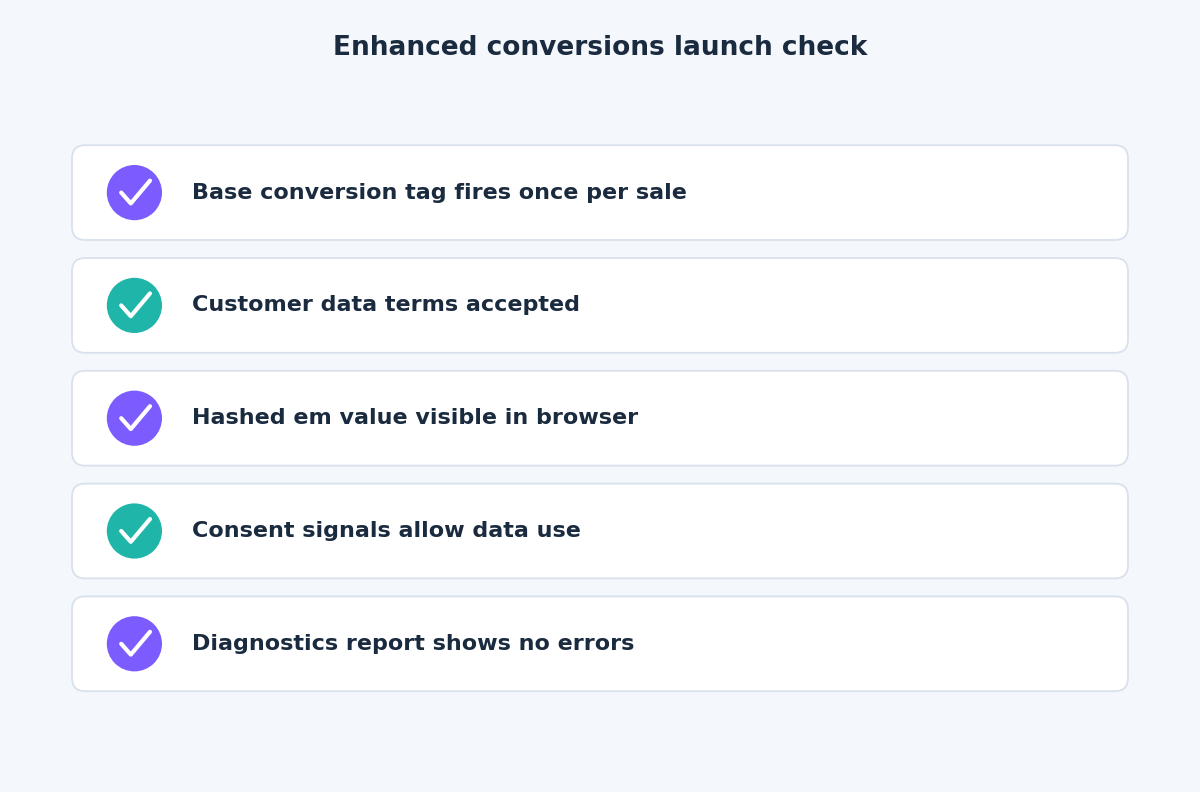
- The base conversion tag already fires once per conversion, with a transaction ID for purchases.
- You have accepted the customer data terms in Google Ads and your privacy policy covers this use.
- Your consent setup passes the right signals. Google’s consent mode reference states that the
ad_user_dataconsent type is required for measurement use cases such as enhanced conversions, and that denying it disables the use of user-provided data. - Email is available. It is the preferred field, and a name with a full address (first name, last name, postal code and country) or a phone number can supplement it.
Three ways to set it up
Google supports three implementation routes, and the best one depends on who controls your site.
- The Google tag. You edit the tag on your pages. Google lets you choose automatic detection, which inspects the page for matching data types, CSS selectors or JavaScript variables that you point to manually, or a code snippet that sends the data directly. Automatic detection is quickest, and the code snippet is the most reliable because it sends consistently formatted data.
- Google Tag Manager. The same three data collection choices apply, configured in your container. This is the usual route for teams that already manage tags there. A dataLayer variable holding the email is the most stable input because it does not depend on page layout.
- The Google Ads API. You upload a conversion adjustment of type
ENHANCEMENTthat carries the order ID and hashed user identifiers. Google’s API guide says you can send it within 24 hours of the conversion, which lets you pull data from a CRM or order system instead of the browser.
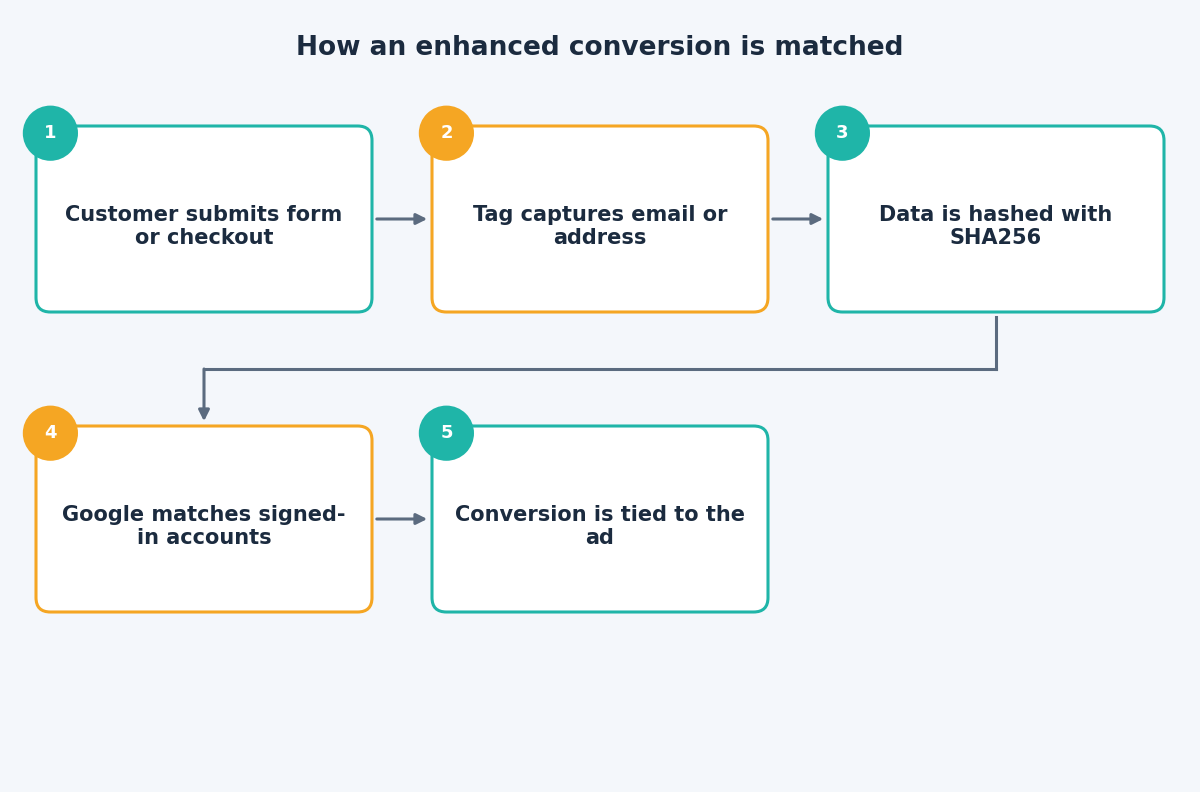
A setup sequence that works
- Turn it on in Google Ads. In the conversion settings under Goals, enable enhanced conversions, accept the terms and choose your method.
- Configure the data source. Set up the tag, container or API upload for the conversion action you want to improve.
- Test one real conversion. Open your browser’s developer tools, complete a test order and look for a parameter called
emwith a hashed string as its value. Google’s guidance uses this as the check that the tag is capturing customer data. - Wait for diagnostics. Google says the tag diagnostics report becomes available about 72 hours after implementation.
- Judge impact later. Google says results appear in the conversion action table about 30 days after a successful setup.
Reading the diagnostics report
The tag diagnostics report is your main health check. Find it by opening a conversion action’s status details and selecting the Diagnostics tab. It lists specific issues rather than a general pass or fail.
The problems it can flag include:
- Missing or empty fields, usually because the selector points to the wrong element or the form is on another page.
- Formatting errors in emails, phone numbers or addresses.
- Incomplete addresses, such as a missing country or postal code.
- Low match rates with signed-in Google accounts.
- Automatic detection errors, where the tag guessed the wrong field.
If you use the API, the API diagnostics report adds coverage, meaning how many events carried enough user data, and match rate. Google also notes that a report shows no recent data when no conversions were recorded in the past seven days, so a quiet week is not always a setup fault.
Fix the reported issue, then re-test. Do not change the conversion action and the method at the same time, or you will not know which change helped.
Common mistakes
Typical failures are a short list. Firing the tag on a page where the email no longer exists. Hashing the data twice, or hashing it without trimming spaces and lowercasing first. Relying on automatic detection on a custom checkout. And forgetting consent, so that the data is never sent for visitors who declined.
The takeaway
Enhanced conversions can improve measurement quality, but only if the data actually reaches Google in the right shape. Test a real conversion, read the diagnostics and give the results time before drawing conclusions. If you want a second opinion on your conversion setup, get in touch through the contact page and we can go through it together.
Related reading
- Consent Mode v2 in Google Tag Manager: setup, modes and verification.
- Google Ads account structure in 2026: fewer campaigns, stronger signals.
- Reliable form and lead tracking in GTM: why built-in triggers fail and what to use instead.