Most Google Tag Manager debugging takes longer than it needs to because people start with the tag. The tag is the last link in a chain. Before it can fire, an event has to happen, a trigger has to match it, and the data the tag needs has to be in place at that moment.
This post walks through Preview mode and Tag Assistant, how to inspect the dataLayer and variables, and the four mistakes behind most “it does not work” reports. The aim is a routine you can repeat on any container.
Start Preview mode correctly
Google’s preview and debug help page describes the flow: open your container, click Preview in the Workspace tab, enter your site’s URL and click Connect. The site opens in a new window, or in a new tab if you have the Tag Assistant Companion extension installed. Preview shows your current workspace changes in your own browser, so you can test before anything is published.
Two details save time:
- The debug signal. Some sites break with the debug parameter. If yours does, untick “Include debug signal in the URL” before connecting.
- Sharing. From the More Actions menu in Tag Assistant, choose Share to generate a preview link a colleague or client can open.
If Tag Assistant will not connect, Google’s troubleshooting guide lists the usual causes: browser extensions, a firewall or proxy, a content security policy, consent tools that block scripts, and pages loaded inside iframes.
Read the event stream before the tags
Every page load produces a fixed sequence of events. Google’s page view trigger documentation lists them in order: Consent Initialization, Initialization, Page View, DOM Ready and Window Loaded. After those come your own events, such as clicks or dataLayer pushes.
The habit that matters is to select an event in the left-hand list first, and only then open a tag. Tag Assistant shows fired and not-fired tags for the selected event, so a tag that looks broken on Window Loaded may have fired correctly on Page View. Judging tags from the Summary view is how people end up debugging the wrong moment.
Inspect the dataLayer and variables
The Data Layer tab shows the current state of the data layer and what was pushed for each event. The Variables tab shows what each variable resolved to at that event. Between them you can see whether the data existed when the tag fired.
Keep Google’s dataLayer rules in mind:
- The
dataLayerobject name is case-sensitive, so a push with the wrong casing silently does nothing. - Values persist only while the visitor stays on the current page.
- Pushing a variable that already exists overwrites its earlier value.
- To have data available when the container loads, the push must sit above the container snippet.
A routine you can repeat
When something is wrong, work through the same four steps every time, and do not skip ahead to editing the tag:
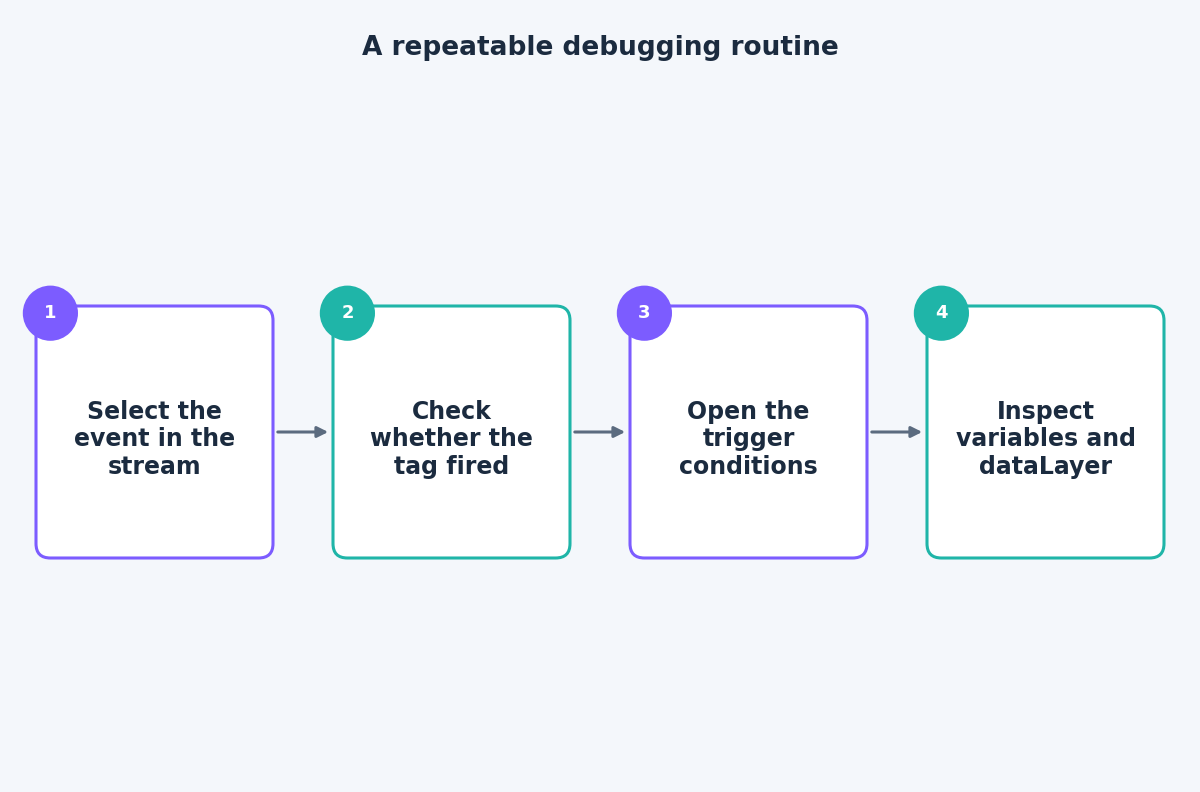
Selecting the event tells you whether the moment you care about exists. The tag status tells you whether GTM tried. The trigger conditions explain why it did or did not. The variables and dataLayer show whether the data was ready. If all four look right in Preview and the numbers in your reporting are still wrong, the issue is probably downstream, in the destination’s own filters or in consent, and it is worth checking there next.
The four mistakes behind most problems
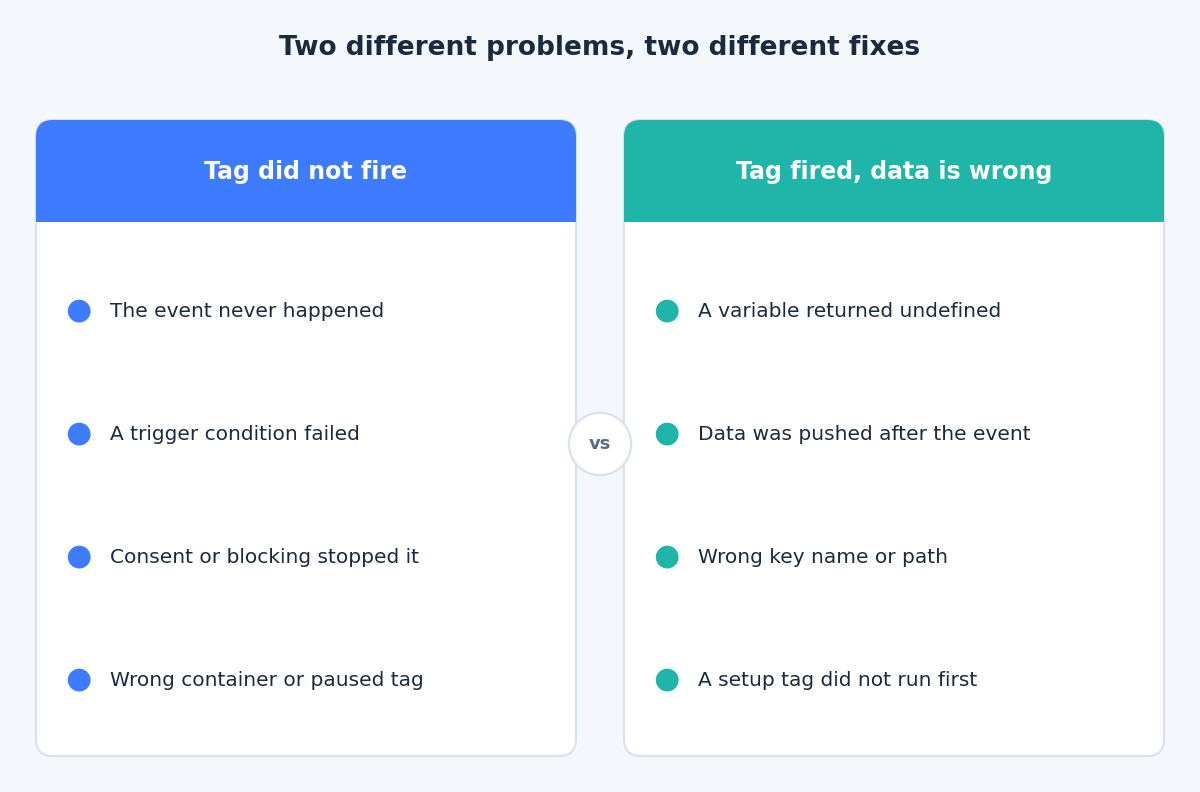
- Trigger conditions that never match. A trigger filter is a variable, an operator and a value, and all the conditions must be true. Typical failures are Page Path versus Page URL, contains versus equals, a trailing slash, or a custom event name that differs by one character or by case. Select the tag in Preview and read which condition failed.
- Tag sequencing assumptions. If one tag needs another to run first, such as a tag that sets a user ID before an event tag reads it, do not rely on the order tags happen to load in. Use tag sequencing, where a setup tag fires before the main tag and a cleanup tag fires after it. The option to not fire the main tag if the setup tag fails is there for exactly this case. Also check the tag firing option: “once per page” on a tag that should fire on every event is a quiet way to lose data.
- Variables returning undefined. The usual causes are a mistyped key, a nested key read without its full path (for example
ecommerce.valueon a Data Layer Variable set to version 2), or data pushed after the event that fires the tag. Check the variable on the event where the tag fires, not on Page View, and confirm in the Data Layer tab that the key exists at that moment. - Cached or stale containers. You published a fix and the live site still behaves as before. The page may be served from a cache that holds an old snippet, a caching plugin may be delaying the container script, or you may be looking at a workspace change that was never published. Load the page in a private window, confirm Tag Assistant connects to the container ID you expect, and check the Versions page to see which version is actually live and when it was published.
The takeaway
Debugging GTM is mostly a matter of order: event first, then trigger, then data, and only then the tag. If you would like help with a container that is behaving unpredictably, the contact page is the place to get in touch.
Related reading
- A clean GA4 ecommerce dataLayer in GTM: the event and parameter contract behind reliable ecommerce tracking.
- Reliable form and lead tracking in GTM: why built-in triggers fail and what to use instead.
- GTM container hygiene: naming, versions, workspaces and permissions.